With Microsoft’s introduction of computer use in Copilot Studio, available in public preview for U.S.-based environments, users can now allow digital agents to seamlessly interact with websites and desktop applications even mimicking human actions. This exciting advancement empowers users to delegate routine web and desktop tasks by simply describing what needs to be accomplished.
The new public preview delivers notable enhancements aimed at flexibility, ease of use, and security. A hosted browser powered by Microsoft Windows 365 allows you to automate web tasks instantly, eliminating the need for local machine setup. For more tailored automation such as working with proprietary applications or internal tools, users can register their own devices and extend agent capabilities.
Getting started is straightforward, thanks to pre-built templates that showcase common automation scenarios. Security is deeply embedded: credentials can be safely stored for agent use, and a robust allow-list ensures agents interact only with approved sites and apps, automatically halting any unauthorized actions.
Expanding Automation Potential
With computer use, Copilot Studio agents unlock new possibilities that previously required manual input:
- Market research and data collection: Agents can browse multiple websites, interpret dashboards, and gather insights for analysis.
- Inventory management: Agents monitor supplier and e-commerce portals to track product availability and delivery timelines.
- Automated data entry: Agents fill out forms and move information between systems lacking direct integration, reducing repetitive workload.
No-Code, Advanced UI Automation
If you’re familiar with Microsoft Power Automate desktop flows, you’ll find computer use in Copilot Studio both recognizable and more capable. Unlike traditional robotic process automation (RPA), this feature excels at handling complex and ever-changing interfaces. Key advantages include:
- Adaptability: Agents respond to changes in app or website layouts without manual reconfiguration.
- Speed: Describe tasks in plain English with no coding required.
- Visual intelligence: Agents interpret charts, dashboards, and on-screen visuals as part of their workflow.
Expanded Use Cases
Beyond standard data entry, Copilot Studio’s computer use capabilities unlock complex automation scenarios across various business functions by leveraging visual reasoning to interact with legacy and modern systems.
In Finance and Accounting, agents can handle end-to-end invoice processing—logging into vendor portals to download PDFs, extracting data, and entering it into ERPs like SAP—while also performing visual reconciliation between bank portals and internal spreadsheets.
IT and System Administration workflows benefit from agents that perform "health checks" on on-premise applications, visually verifying status dashboards and automating user provisioning across fragmented, non-integrated platforms.
Additionally, Supply Chain and HR operations can be streamlined by agents that monitor supplier portals for shipping updates or physically click through complex web forms for timesheet entry, effectively acting as a resilient "swivel chair" bridge between incompatible systems.
1. Finance & Accounting Automation
Computer use is particularly strong here because many legacy banking portals and invoice systems lack modern API integrations.
- End-to-End Invoice Processing: Instead of just data entry, an agent can log into a vendor portal, download invoice PDFs, extract key data (dates, amounts, PO numbers), and then input that data directly into a legacy ERP system (e.g., SAP, Oracle) that doesn't have an easy connector.
- Reconciliation: An agent can open a bank portal in a browser and an internal spreadsheet side-by-side, visually comparing transaction lines to flag discrepancies for human review.
- Audit Trail Creation: The agent can navigate through transaction logs, take screenshots of specific approval screens as "proof of compliance," and save them into a secure folder for audit purposes.
2. IT & System Administration
Since "computer use" can interact with the Windows desktop itself, it opens up local administrative capabilities.
- Legacy App Maintenance: Agents can perform routine "health checks" on older, on-premise applications by opening them, clicking through to status dashboards, and reporting back if any visual warning indicators (like red status icons) are present.
- User Provisioning: In organizations with fragmented systems, an agent could take a new employee's details and manually create accounts across multiple unconnected platforms (e.g., a badge access web portal, a legacy time-tracking app, and a cloud-based project tool).
- Desktop "Cleanup" Tasks: Agents can be instructed to perform local maintenance, such as running disk cleanup utilities or changing system settings (e.g., disabling animations for performance) on a fleet of virtual machines.
3. Supply Chain & Logistics
- Supplier Portal Monitoring: Agents can autonomously log into disparate supplier portals (which often require unique 2FA or captcha navigation) to check for shipping updates or stock availability, consolidating this data into a single daily report.
- Dynamic Price Adjustment: In retail, an agent could browse competitor websites to visually identify price changes on specific SKUs and update internal pricing sheets accordingly.
4. HR & Employee Services
- Timesheet Automation: For employees, an agent could take a simple natural language prompt like "Log my hours for Project X this week" and physically click through the company's complex time-tracking web form to submit the entry.
- Resume Screening (Preliminary): An agent could open a folder of resume PDFs, open each one, visually scan for specific keywords or certifications (even if the formatting varies widely), and move the qualified files to a "Review" folder.
5. Cross-Platform "Bridge" Workflows
The most powerful use case is acting as a bridge between modern and legacy systems.
- "Swivel Chair" Automation: Agents can physically copy-paste information between two incompatible windows for example, taking customer support notes from a modern CRM (like Salesforce) and pasting them into a mainframe terminal emulator that tracks inventory.
- Visual Validation: Unlike code-based automation, computer use agents can "see." You can ask an agent to "Check if the graph on the dashboard shows a downward trend." The agent can interpret the visual chart on a screen without needing access to the underlying data source.
Why These Matter (The "No-API" Advantage)
The core value across all these examples is fragility handling. Traditional scripts break if a button moves or a field is renamed. Copilot Studio’s computer use utilizes visual reasoning, meaning if a "Submit" button moves from the bottom left to the bottom right of a webpage, the agent "sees" it and clicks it anyway, making these automations significantly more resilient than old-school macros or rigid RPA bots.
Driving Innovation in Business Processes
Computer use in Copilot Studio bridges the gap between systems without APIs and the urgent need for secure, intelligent automation. Organizations can now streamline data entry, automate research, and manage dynamic interfaces—freeing up valuable human time for higher-level work.
Getting Started with Computer Use
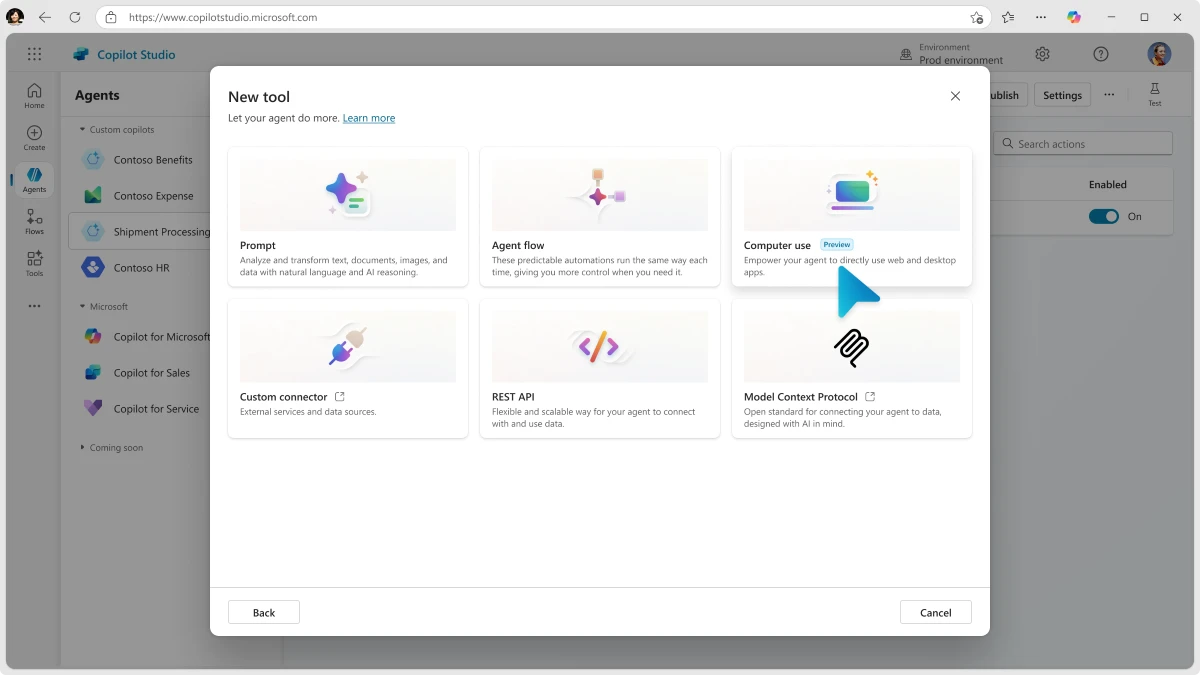
To experiment with computer use, access Copilot Studio in a U.S.-based environment, select or create an agent, and add computer use from the Tools menu. Simply describe your task—like filling out an invoice or gathering pricing data—and let your agent take over. Microsoft offers comprehensive documentation and welcomes user feedback to refine future updates.
Get started
You can try the public preview of computer use today in Copilot Studio:
- In any US-based environment, create or open an existing agent.
- Go to Tools → Add tool → New tool.
- Select computer use and start building by simply describing the task you’d like done.
Conclusion
Microsoft Copilot Studio’s public preview of computer use marks a major milestone in business automation. With powerful, user-friendly features and a strong emphasis on security, it empowers organizations to boost productivity and foster innovation throughout their operations.
Your Partner in Intelligent Automation
What a time to be working in automation! Features like Copilot Studio's computer use are opening doors that were firmly shut just a few years ago. But here's what I've learned after 20-plus years of building software solutions: technology alone doesn't solve problems.
Success comes from combining powerful tools with deep expertise in how businesses actually operate. From founding companies that got acquired to consulting with industry leaders, I've spent my career helping teams turn complex data streams and disconnected systems into streamlined, automated workflows.
If this article sparked ideas about what you could automate in your own organization, I'd be thrilled to explore those possibilities with you. Whether it's building custom applications, designing AI-powered workflows, or simply figuring out where to start, my software development and automation services are here to help. The best solutions are built together, so let's schedule a free consultation and see what we can create.
If you're curious about how my experience can help you, I'd love to schedule a free consultation.

Source: Microsoft Copilot Studio Blog


Microsoft Copilot Studio Unveils Computer Use: Next-Level Automation Without APIs